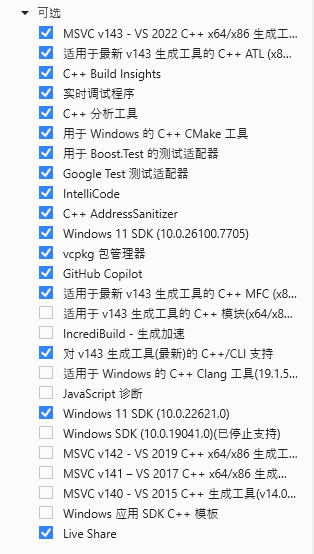
1.依据官方文档,首先下载并安装 Microsoft Visual Studio 2022 Community,安装时添加使用C++进行桌面开发集成环境,并添加以下组件:
C++/CLI support for v143 build tools (Latest)
C++ MFC latest v143 build tools (x86 & x64)
Latest Windows 11 SDK
-------------------------------------------------
注:
(1) Visual Studio 2022 Community可在cmd窗口使用以下命令安装:

winget show --versions "Microsoft.VisualStudio.2022.Community
winget install -v 17.X.X "Microsoft.VisualStudio.2022.Community

详见:https://learn.microsoft.com/zh-cn/answers/questions/5361094/ms-visual-studio2022-community?forum=msoffice-all&referrer=answers

(2) 如遇Visual Studio安装问题,大多可采用MicrosoftProgram_Install_and_Uninstall.meta.diagcab修复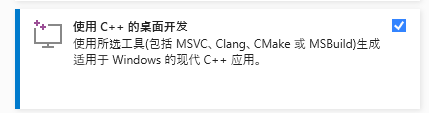
2.随后安装Intel Fortran compiler和相关 Inter oneAPI 组件:
w_fortran-compiler_p_2024.2.1.81_offline.exe

Intel MPI, w_mpi_oneapi_p_2021.13.1.768_offline.exe

Intel MKL, w_onemkl_p_2024.2.2.16_offline.exe

注:
(1) 如果能下载到对应版本最好,如果下载不到,采用最新版本也可。
(2) Intel Fortran编译器和Intel MKL 库安装时需要和Visual Studio 2022 Community集成。3.安装CMake和Git,直接安装即可,CMake可能需要添加到环境变量,Git需要选择默认编辑器,其余都可按照默认安装选项一直下一步。
4.使用使用命令行或Visual Studio内置的Git功能拉取Delft3D源代码。
5.打开intel oneAPI command prompt for Intel 64 for Visual Studio 2022,cd至源代码根目录,运行build.bat:
帮助:
build.bat -help
构建全部:
build.bat -config all
build.bat -config all -build_type Release
build.bat -config all -build_type Release -build

指定特定模块:
build.bat -config delft3d4
根目录会新增一个bulid_<component>文件夹。
6.编译,在刚才的命令行窗口中,运行:
devenv build_<component>/<component>.sln

如:
devenv build_all/all.sln
然后在打开的 Visual Studio中选择生成-生成解决方案即可,根目录会新增一个install_<component>文件夹。
注:
(1) 如果要重新构建,删除bulid_<component>文件夹、install_<component>文件夹和IDE缓存,然后重新进行5、6步骤即可。
rmdir /s /q build_all
rmdir /s /q install_all
rmdir /s /q .vs
(2) 如遇字符错误:
可在Visual Studio对应文件的”属性 – C/C++ – 命令行”界面中,在最后添加 “ /utf-8”。
或以utf-8格式另存文件。
或修改CMakeLists文件,如:若提示test_pre_c_sumo_lib文件出现错误,则在 “src/tools_gpl/pre_c_sumo/test/CMakeLists.txt” 文件中的add_executable(test_pre_c_sumo_lib …)语句后添加:
if (MSVC)
    target_compile_options(test_pre_c_sumo_lib PRIVATE /utf-8)
endif()